Segments Page With Trends
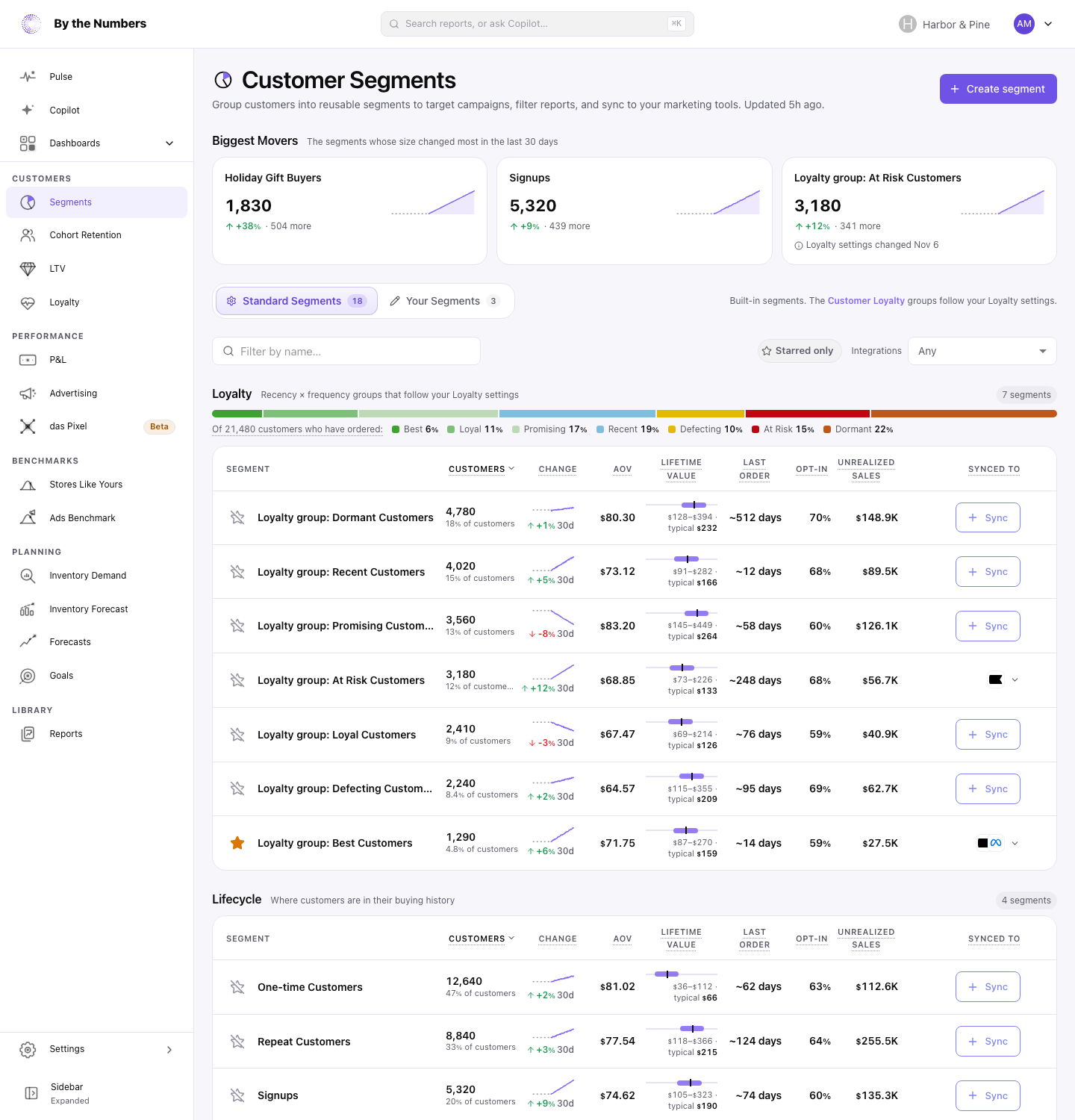
Segments Page With Trends shows each segment’s numbers on Customer Segments as counted at your last data rebuild, with how its size has moved. Every row appears at once, and every column sorts at once.
Segments Page With Trends is switched on shop by shop. If your store doesn’t have it yet, the page counts each segment when you open it, with the Frequency, Avg LTV and Lifespan columns. Everything else about segments works the same.
How It Works
The Columns
- Customers: how many customers are in the segment, and their share of all your customers, including those who haven’t ordered. A segment with under 1% reads
<1%. - Change, in the same column: the segment’s size over the last 90 days, and how much it grew or shrank. The change is over 30 days and reads
30d. Until a segment has more than 30 days of history, it’s over 7 days and reads7d. The color says whether the news is good: see The Colors below. - AOV: the average order value of the segment’s customers.
- Lifetime Value: the bar spans the middle half of the segment’s customers by lifetime value, from the 25th to the 75th percentile. The tick marks the typical customer, the median. Under the bar are that range and the typical value.
- Last Order: the median number of days since the segment’s customers last ordered.
- Opt-In: the share of the segment’s customers who accept email marketing in Shopify.
- Unrealized Sales: what the segment’s customers could still spend, from their lifetime value minus their sales so far.
Every Lifetime Value bar on the page uses the same scale, so you can compare segments by eye.
Under each segment’s name, one muted line says what the segment is. It shows the rules as a sentence, such as Customers with at least 2 orders, or the segment’s description until the sentence is ready.
A new or changed segment gets its sentence within a minute or so, and the line stays blank until then. Hover over the line to read all of it.
Choosing Columns
Columns, in the toolbar above the list, shows or hides the columns after Customers and Change. You can hide AOV, Lifetime Value, Last Order, Opt-In and Unrealized Sales. A store without Segments Page With Trends lists Frequency, AOV, Avg LTV, Lifespan and Unrealized Sales.
Customers and Change always show, and every other column shows until you hide it. Your choice is saved in this browser for you only, so a teammate sees their own.
If you sort by a column and then hide it, the list sorts by Customers.
The Colors
A segment’s change is green when the news is good and red when it’s bad. For most segments, growing is good news.
For these it’s the other way around, so shrinking is green and growing is red:
- Dormant, At Risk and Defecting, the loyalty groups.
- The At Risk or Dormant segments.
- Inactive Subscribers.
- Serial Returners.
- Abandoned Cart, Not Recovered.
A change too small to show is neither color.
Sorting
Click a column heading to sort by it, biggest first. Click again to reverse the order, and a third time to clear it. A segment without a number for the column sorts last either way.
Change sorts by the 30-day change only, since a 7-day change isn’t comparable with it. It becomes a sort button once a segment shown has more than 30 days of history, and until then it’s a plain heading.
Lifetime Value sorts by the typical value.
The Card
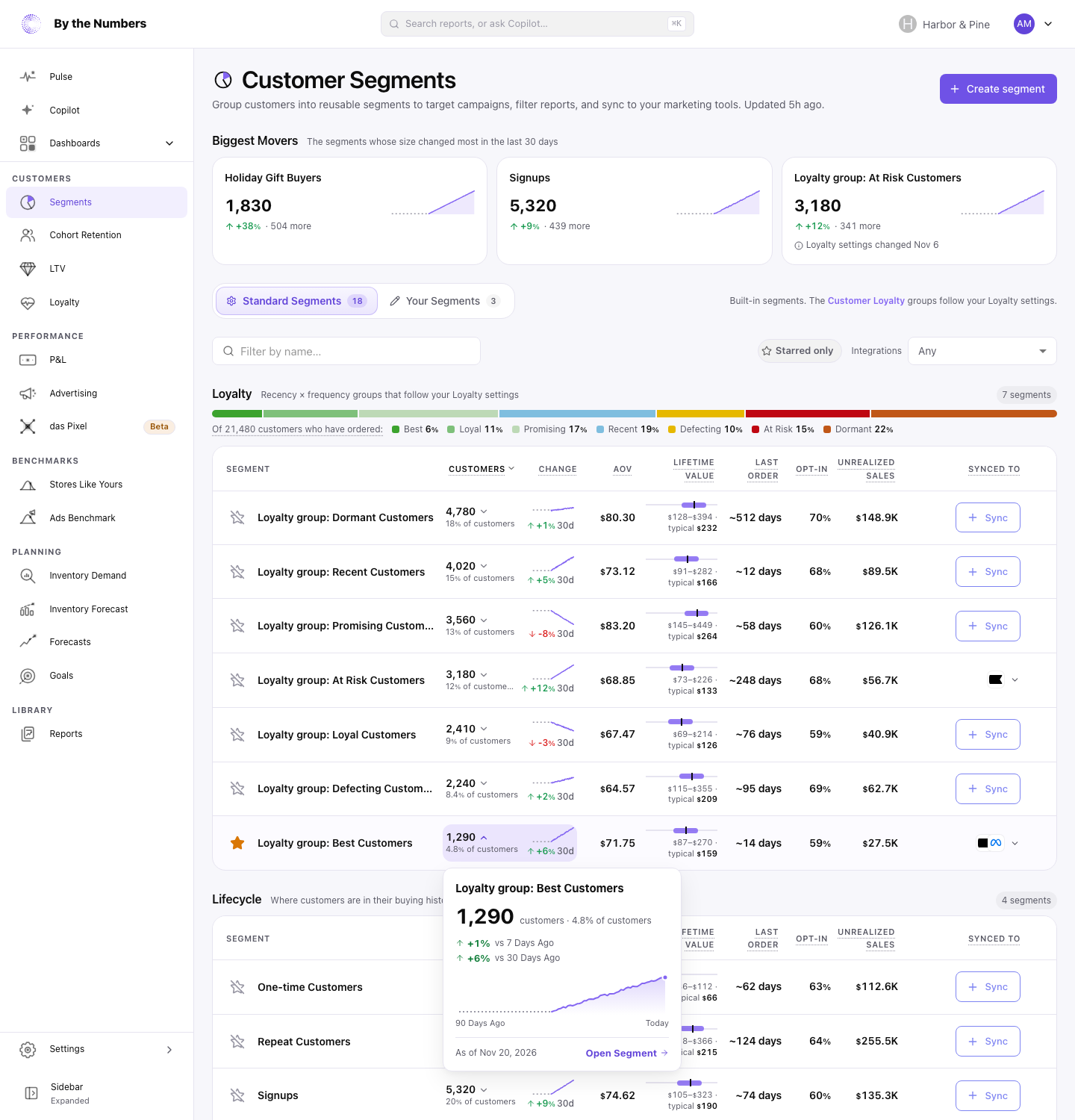
Rest the pointer on a segment’s customer count, marked by a chevron, to open a card with the same numbers at reading size. With the keyboard, Tab to the count. Click the count to pin the card open, and click it again to close it.
Press Esc, click anywhere else or move away to close it. Tab moves from the count into the card, and Esc puts the focus back on the count. Only one card is open at a time.
A segment with no numbers yet, or one you just counted with Count Now, has no card.
The card shows:
- The segment’s name.
- Its size, its share of your customers, and its 7-day and 30-day change. A change shows a dash until the segment has enough history, and a line under the figures says how much.
- A chart of its size over the last 90 days, with a dot on today.
- How its customers buy: Orders per Customer (the average number of orders each one has placed) and Avg Lifespan (the average days between a customer’s first and last order).
- The date of the numbers.
View Segment opens the segment’s own page, where you can see its rules and its other numbers.
On Customer Loyalty, rest the pointer on a tile in the grid, or Tab to it, and the same card opens for that group’s segment. Clicking a tile still selects it.
The card’s colors follow what is good news, as on the Customer Segments page. When Dormant, At Risk or Defecting shrinks, its change is green. When one of them grows, its change is red.
Biggest Movers
Biggest Movers, above the tabs, shows up to 3 segments whose size changed most in the last 30 days. They’re ranked by how many customers joined or left, not by the percentage. Each card shows the count, the size chart and the change, such as +18% · 734 more.
A segment qualifies when:
- It has more than 30 days of history under its current rules.
- It had at least 100 customers 30 days ago and has at least 100 now.
- Its size changed by at least 5%, up or down.
- It holds no more than half of all your customers. A segment that big, such as Signups, moves with the whole store.
- It isn’t locked, and it can be counted.
When two segments had the same number of customers 30 days ago and have the same number now, only the first gets a card. When no segment qualifies, Biggest Movers doesn’t show.
A loyalty group’s card says Loyalty settings changed and the date when your Loyalty settings changed in those 30 days. A new cutoff moves customers between groups without changing the segment, so part of the change can come from the new settings.
Renaming a group doesn’t count as a change, and neither does switching to custom cutoffs that are the same as before.
Loyalty Mix
Under the Loyalty heading, a bar shows how the customers who have ordered split across your loyalty groups. It uses your own group names and the colors of Customer Loyalty. The line under it starts with how many customers have ordered, such as Of 10,000 customers who have ordered: Best 7%.
Every customer who has ordered is in exactly one group, so the shares add up to 100%. The rows below count every customer, including those who haven’t ordered, so their shares are smaller.
Rest the pointer on a section of the bar, or Tab to it, to open the card for that group’s segment. It is the same card as on Customer Loyalty.
The bar doesn’t show when the shares add up to less than 99% or more than 101%, which means the numbers come from different rebuilds. It also doesn’t show when a group’s segment holds something other than that group, which can happen in stores that were set up long ago.
Segments With Little or No History
The page keeps a segment’s size history from the day it was first counted. It can’t be filled in backward.
- Under 7 days of history: the count shows, with a dash where the size chart goes.
- From 7 days: the chart shows the days it has, with a dashed line for the rest of the 90.
- The change: the 7-day change needs more than 7 days of history, and the 30-day change more than 30.
- Not counted yet: a dash and Count Now. Count Now runs a live count of that segment and shows it with “just now”.
- Can’t count: the segment couldn’t be counted at the last rebuild. Its rules are too complex to count ahead of time, they can’t be counted as written, or the count failed. Hover over Can’t count to see which.
- Locked: no numbers.
When you change a segment’s rules, its history starts over. The card says when it restarted.
Empty Segments
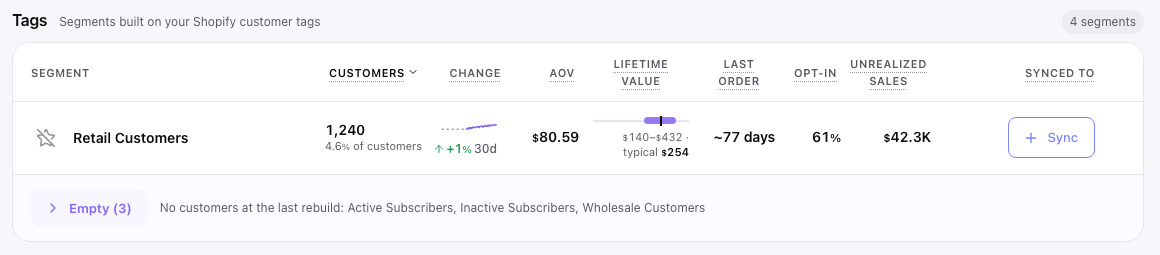
A segment with no customers at the last rebuild is empty, and it shows like any other segment until you choose to fold it. To fold them, turn on Fold empty segments into one row in the Customer Segments card of Preferences. Each group then folds its empty segments into one row at the end, such as Empty (5).
The row names the first 3. Click it to show them, and again to fold them. While you search by name, the empty segments that match show under Empty, with nothing to click.
The setting is off until someone on your team turns it on, and it applies to everyone on your team. These never fold:
- A segment that syncs to a marketing tool, so you can still reach its sync.
- A segment you just counted with Count Now, even if it counted 0.
- A segment that hasn’t been counted, can’t be counted or is locked.
How Fresh the Numbers Are
The numbers are counted when your customer data is rebuilt. How Often Is My Data Updated? has the schedule. The page description says when your data was last updated.
When the newest numbers are from an earlier day than that update, Stats as of beside the tabs gives their date. Dates are in your store’s time zone.
When the newest numbers are older than 2 rebuilds, a notice above the list gives their date instead. Segments still filter reports correctly.
What It Means for You
Start with Biggest Movers to see which groups of customers grew or shrank most, then sort by Change for the rest. When a loyalty group moved just after you changed your Loyalty settings, check the cutoffs before you read it as a change in how customers buy.
Check Opt-In before you sync a segment to an email tool. Email and text-message tools receive only the customers who accepted their kind of marketing. How to Sync a Segment lists which tools check.
Compare segments by their Lifetime Value range rather than an average. A few big spenders can pull an average up, while the range shows what most customers in the segment are worth.
Related
- Segment Picker With Previews: the preview you see when you pick a segment on a report.
- How to Create a Custom Segment: build your own segments.
- How to Sync a Segment: send a segment to your marketing tools.