Sales by Channel
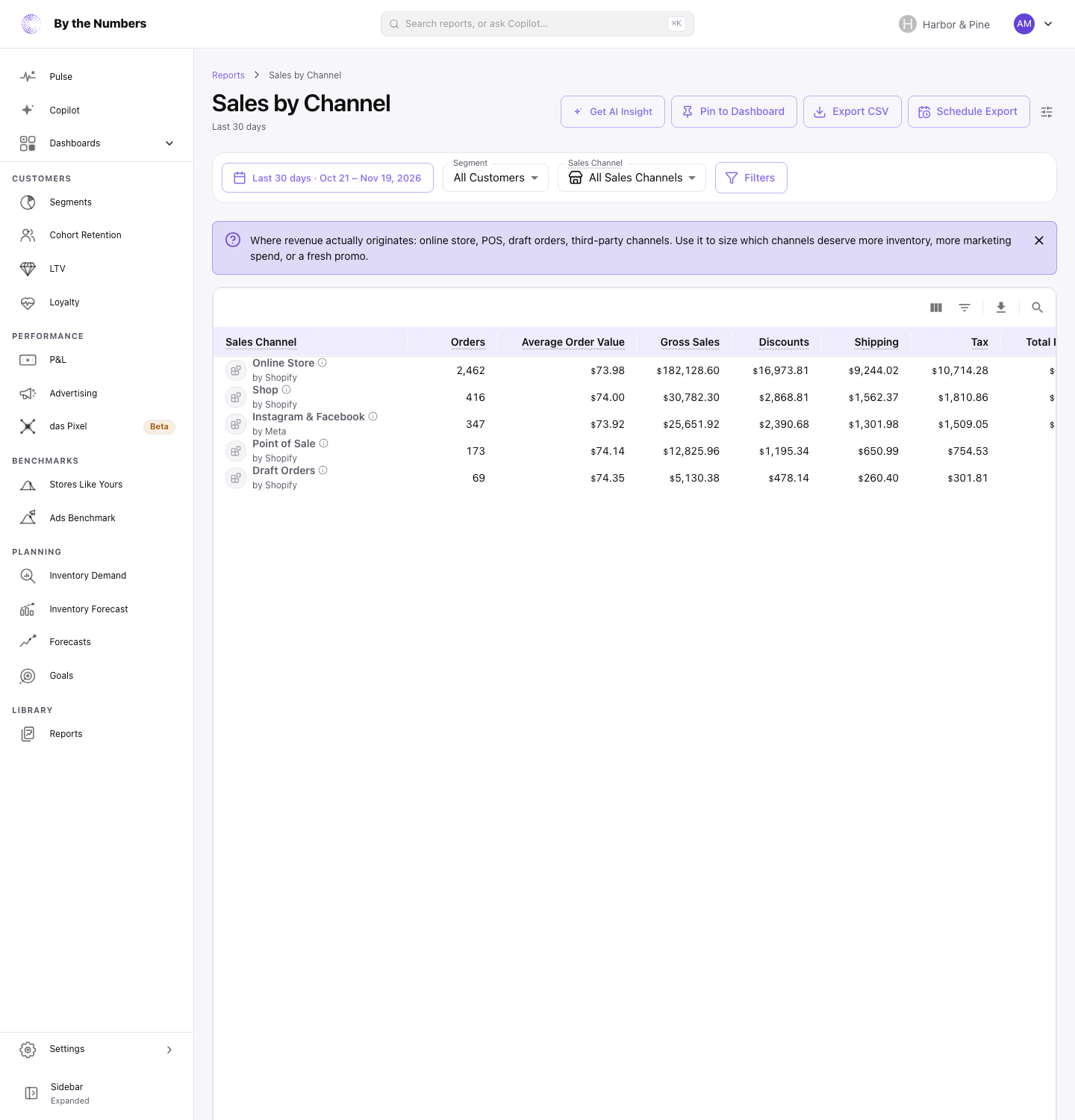
Sales by Channel shows how much each of your sales channels sold in the date range. A channel is the online store, point of sale, draft orders or any app that places orders for you.
How It’s Calculated
The table has one row for each sales channel that took an order in the date range. A chart above the table shows the 10 channels with the most Total Sales, as a pie or a bar chart. A pinned dashboard card shows the same chart.
The columns are:
- Orders: the number of orders placed through the channel.
- Average Order Value: the channel’s sales before returns, divided by its orders.
- Gross Sales: each item’s price times its quantity, before discounts, shipping, tax and returns.
- Discounts, Shipping and Tax: what Shopify records on those orders.
- Total Returned: money refunded on the channel’s orders in the date range.
- Net Sales: Gross Sales minus Discounts, plus Shipping, minus Total Returned. It doesn’t add tax, so if your prices include tax, it still contains it.
- Total Sales: Gross Sales minus Discounts, plus Shipping and Tax, minus Total Returned.
If your prices include tax, Gross Sales already contains it, and Total Sales doesn’t add it a second time.
What Counts
- A channel is the app that placed the order, as Shopify records it. An app By the Numbers has no name for shows as
Unknown App #followed by its number. An order with no channel on it shows asUnknown. - Sales count on the day the order was placed. A refund counts on the day it was made, against the channel of the original order. Refunds on orders placed more than 2 years before the start of the date range aren’t counted.
- Orders that were canceled, or whose payment was voided or expired, don’t count.
- A channel with no orders in the date range doesn’t appear, even if you refunded one of its older orders in that range.
- Days follow your store’s time zone, and every amount is in your store’s currency.
- Segment and Filters narrow the report. The report has no Sales Channel menu, because it always lists every channel. On other reports, such as Total Sales, that menu narrows the report to one channel.
This report has no comparison period. To compare channels over time, change the date range.
What Good Looks Like
There’s no right split. It depends on where you sell.
What matters is the direction. A channel that shrinks while your total holds means sales are moving somewhere else. A channel with a high Average Order Value is worth growing.
What to Do About It
- A channel falling: check the work behind it. For the online store, look at your ad spend and traffic on Advertising.
- A channel with a low Average Order Value: look at its discounts and shipping in the same row.
- A channel with high returns: compare Total Returned with Gross Sales in the row.
- Which channel makes money: open Profit by Channel to see gross profit by channel, after cost of goods.
Get AI Insight at the top of the report asks Copilot for a short read of it, for the date range and filters you chose.
Where to Find It
- Sales by Channel: open Reports and look under Sales.
- Total Sales: all sales, broken into gross sales, discounts, shipping, tax and returns.
- Reporting Methodology: how By the Numbers counts sales and returns.