Orders Fulfillment Status
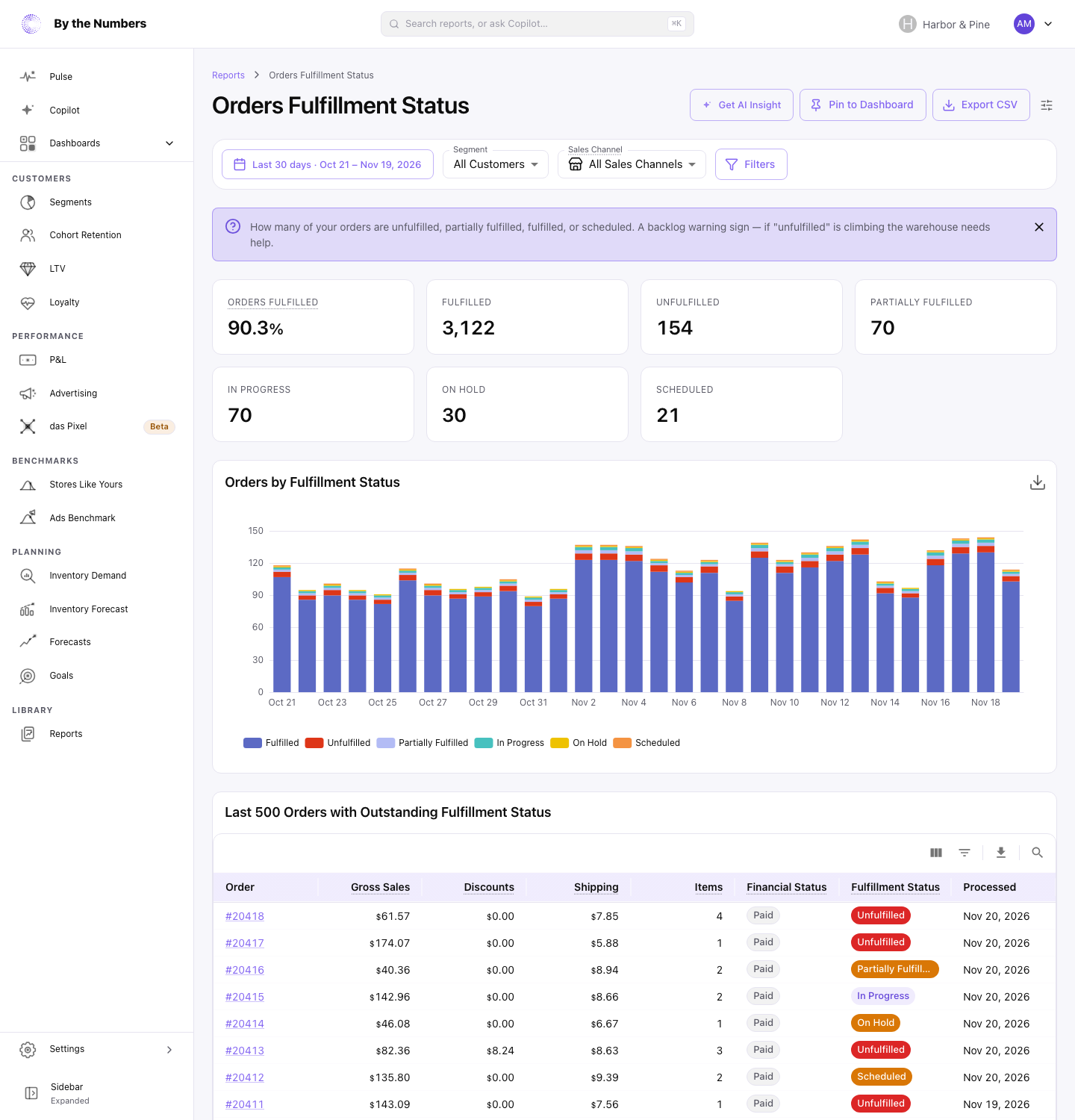
Orders Fulfillment Status shows how many of the orders placed in your date range have been fulfilled, and how many are still waiting. Below the chart, it lists the most recent orders that aren’t fulfilled yet.
How It’s Calculated
Each order counts once, under the fulfillment status Shopify gives it. That’s its status as of the last time By the Numbers read the order, not its status on the day it was placed. An order counts in the period it was placed.
- Orders Fulfilled: the share of the orders in the range whose status is Fulfilled.
- A card for each status: how many orders in the range have that status. A status with no orders gets no card.
- Orders by Fulfillment Status: a bar for each period, split by status. Ranges of 3 days or less show a bar per hour, ranges up to 93 days a bar per day, and longer ranges a bar per month.
- Last 500 Orders with Outstanding Fulfillment Status: up to 500 orders from the range whose status is anything but Fulfilled, newest first. Click an order number to open the order in your Shopify admin.
The Statuses
These are Shopify’s fulfillment statuses:
- Unfulfilled: none of the items have been fulfilled.
- Partially Fulfilled: some of the items have been fulfilled.
- Fulfilled: all the items have been fulfilled.
- In Progress: all the items have been sent to a fulfillment service, or marked as in progress.
- On Hold: all the unfulfilled items are on hold.
- Scheduled: all the unfulfilled items are scheduled to be fulfilled later.
- Request Declined: a fulfillment service declined some of the items.
Older orders can also show Open, Pending Fulfillment or Restocked. Shopify has since replaced these with Unfulfilled and In Progress.
What Counts
- Orders that were canceled, or whose payment was voided or expired, don’t count.
- Orders whose payment status is Refunded don’t count anywhere in the report.
- With a Segment, Sales Channel or Filters set, only matching orders count.
- Days follow your store’s time zone.
What Good Looks Like
An order is Unfulfilled until you fulfill it, so the most recent days hold more of them than older ones. Older periods should be almost all Fulfilled. How far back that starts depends on how long your store usually takes to ship.
A backlog shows as Unfulfilled or Partially Fulfilled orders in periods older than your usual shipping time. On Hold and Request Declined orders need someone to act before they can ship.
What to Do About It
- Work through the outstanding list. The oldest orders are at the bottom. Open each in Shopify to fulfill it, or to find out why it’s stuck.
- Request Declined or On Hold: check with your fulfillment service or your warehouse.
- Partially Fulfilled: look for items that are out of stock. Inventory Demand shows the products closest to running out.
- Share the list: Export CSV downloads the outstanding orders, to send to whoever packs them.
The list holds 500 orders at most. If more are waiting, narrow the date range to reach older ones.
To keep an eye on the backlog, click Pin to Dashboard to add the report to a dashboard.
Where to Find It
- Orders Fulfillment Status: open Reports and look under Sales.
- How to Choose a Date Range explains the date range control. How to Use Advanced Filters explains Filters.