How to Connect an AI Assistant to By the Numbers
Connecting an AI assistant lets it read your store’s data in By the Numbers, and make changes if you allow it. Most AI apps connect with a sign-in. Scripts, and apps that can’t sign in, use a token instead.
Before You Start
- You need your own By the Numbers login. Each connection belongs to the team member who sets it up.
- Your AI app needs to support MCP servers. Claude Desktop, Claude.ai and Claude Code do, and so do other apps that support MCP with OAuth 2.1 sign-in.
Steps
Connect With a Sign-In
- Open MCP in By the Numbers. Under Connect an AI Assistant, copy the MCP endpoint:
https://bythenumbersapp.com/mcp. - In your AI app, add a custom MCP server or connector, and paste the endpoint.
- Your AI app opens a By the Numbers page that asks you to connect the app to By the Numbers. Sign in to By the Numbers if it asks.
- Under Choose what it can access, keep Read ticked. Tick Write only if the assistant should make changes.
- Under Which store?, choose the store to connect.
- Select Authorize.
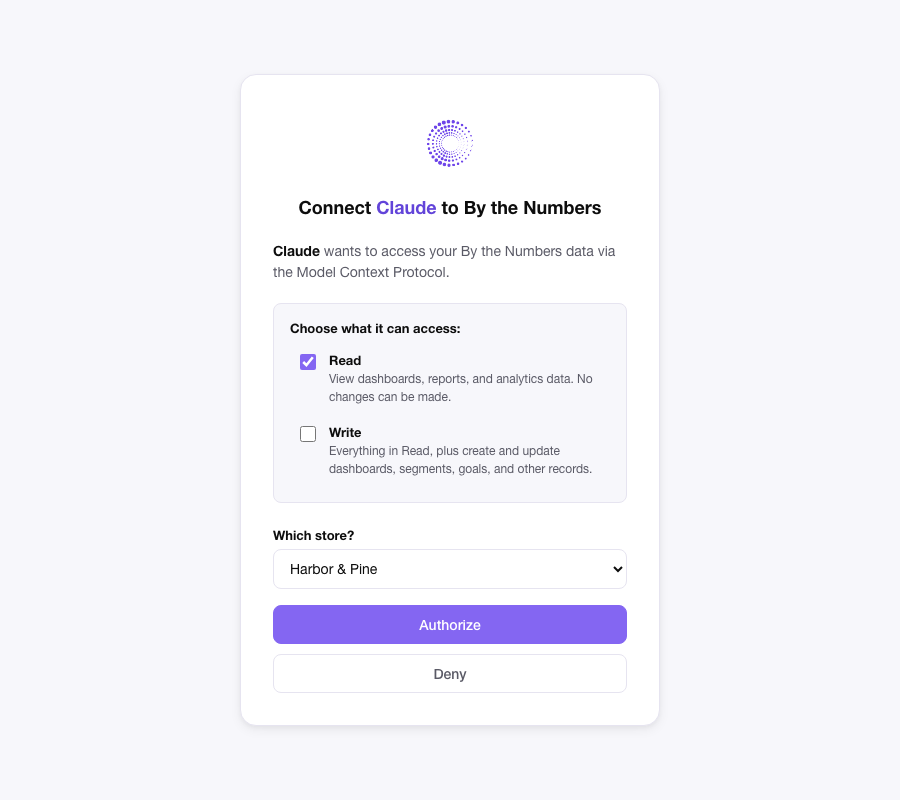
The page ticks Read and leaves Write unticked, even if the AI app asks for both. The app gets only what you tick, and only what it asked for. Leave Write unticked to keep the connection read-only.
Connect With a Token
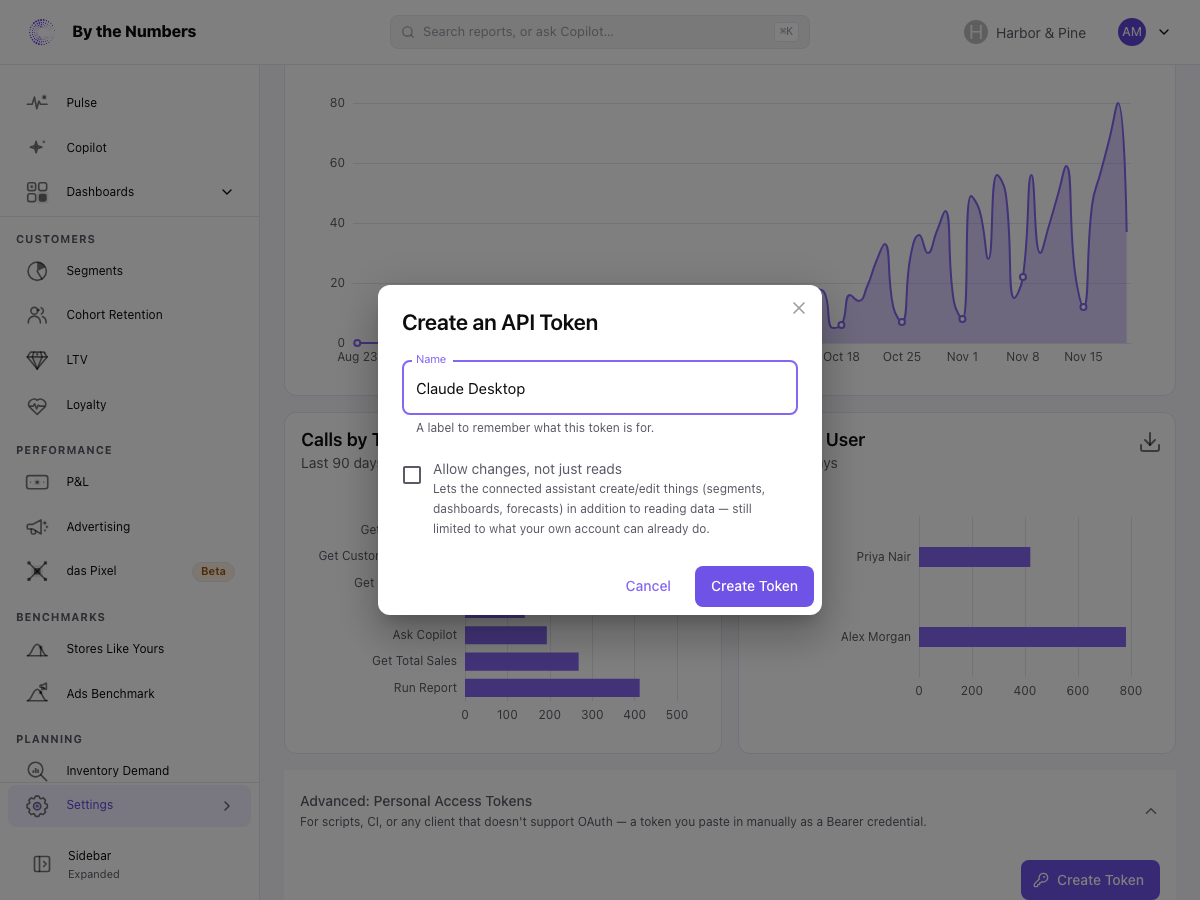
- On the MCP page, open Advanced: Personal Access Tokens and select Create Token.
- Enter a Name that says what the token is for, such as the app’s name.
- Tick Allow changes, not just reads only if the assistant should make changes.
- Select Create Token, and copy the token. It’s shown once and can’t be shown again.
- In your AI app, use the MCP endpoint and send the token in an
Authorizationheader, asBearerfollowed by a space and the token.
What Happens Next
- Ask the assistant a question about your store, such as last month’s sales.
- An app you connected with a sign-in is listed under Connected Apps on the MCP page, with its access, who authorized it, and when it was last active. Everyone on your team can see this list.
- A token is listed under Advanced: Personal Access Tokens, with when it was last used and when it expires. Team members see only their own tokens. The store owner sees every team member’s tokens, with who created each one.
- Tokens expire 90 days after they’re created. Create a new one before then, and replace it in your app.
- Each connection can make up to 120 requests a minute.
Disconnect an App or Revoke a Token
- An app: in Connected Apps, select the X beside it, then Disconnect. It loses access at once. Team members can disconnect only their own apps. The store owner can disconnect any team member’s.
- A token: select the X beside it, then Revoke. Any app using it loses access at once. The store owner can revoke any team member’s token.
Disconnecting in By the Numbers doesn’t remove the connection from the AI app itself, so remove it there too.
Connected Apps lists every app that can still get in, even one you haven’t used for days. An app leaves the list when you disconnect it or its owner is removed from the team.
When a teammate is removed from the team, their tokens and apps stop working at once, and their apps leave Connected Apps. If you invite them back, they have to connect again.